


What Happens When a Website Is Hacked?
A website does not have to display a hacker’s message or suddenly disappear from the internet to be compromised. Sometimes, the first sign is a customer complaining about an unusual redirect. In other cases, a business owner discovers an unfamiliar administrator account or receives a warning that their website may be unsafe. The problem is that many website owners only investigate after something obvious goes wrong. By then, an attacker may already have accessed sensitive information, altered website content or used the site to distribute malicious files.
Knowing the signs of a hacked website helps you respond earlier. It also helps you distinguish a potential security incident from an ordinary technical problem. Whether you run a business website, an online store, a WordPress blog or a web application, understanding these warning signs is part of responsible website management.
What Does It Mean When a Website Is Hacked?
A website is hacked when someone gains unauthorized access to its files, administrative functions, database, hosting environment or other components. The attacker may change what visitors see, create unauthorized accounts, steal information, install malicious code or use the server for activities unrelated to the website owner’s business.
Not every attack produces visible damage. An attacker might attempt to maintain access without changing the homepage or disrupting the website. That is one reason a site can appear normal while still requiring investigation.
A compromise can also happen at different levels. Someone might gain access to a website administrator account without obtaining full control of the hosting server. In a more serious incident, an attacker could exploit a vulnerability in the server’s software and affect multiple applications hosted in the same environment.
The appropriate response depends on what has been accessed and how the attacker gained entry.

7 Signs of a Hacked Website You Should Not Ignore
One unusual behaviour does not automatically prove that a website has been hacked. Hosting problems, configuration mistakes, expired certificates and software updates can cause similar symptoms. However, unexpected changes deserve investigation, particularly when several warning signs appear together.
1. Your Website Redirects Visitors to Unfamiliar Pages
You open your website and everything looks normal. A customer, however, reports that clicking a product or navigation link sends them to an unrelated page.
Unexpected redirects can be a sign of malicious code, an altered website configuration or a compromised plugin or theme. Attackers may redirect visitors to fraudulent login pages, questionable advertisements or websites distributing malware. The behaviour may not affect every visitor. Some malicious scripts behave differently depending on the visitor’s device, location, referral source or other conditions. This can make the problem difficult for the website owner to reproduce.
What to do: Record the affected page, the destination URL and when the redirect occurs. Ask your hosting provider or developer to investigate the website’s files, configuration and relevant logs. Do not assume the problem is harmless simply because it happens inconsistently.
2. You Discover Administrator Accounts You Did Not Create
Administrator accounts have powerful permissions. Depending on the platform, they may be able to install software, change website settings, manage users and access sensitive information. An unfamiliar administrator account is therefore a serious warning sign, particularly if nobody on your team authorized it.

On WordPress, for example, an attacker who gains sufficient access may create a new administrator account to retain control even after the original entry point is discovered. There are legitimate reasons for unfamiliar accounts to exist. A developer may have created one during maintenance or a team member may have forgotten to inform you about a change. Verify the account before drawing conclusions.
What to do: Check who created the account and whether it has a legitimate purpose. If the account is unauthorized, treat the situation as a potential security incident. Secure the affected accounts and ask a qualified administrator to investigate how the account was created. Simply deleting the unfamiliar user may not remove the original vulnerability or other unauthorized access.
3. Your Website Displays Content You Did Not Publish
Your homepage suddenly contains unfamiliar links. Product descriptions have changed. New pages appear in search results even though nobody on your team created them. These changes may indicate that someone has gained access to the website’s content management system, altered its database or modified its files.
Attackers sometimes insert spam links or pages designed to manipulate search rankings. Others may replace legitimate content with fraudulent offers or misleading information. For a business, the consequences extend beyond the website itself. Customers may lose confidence in the brand, while search engines may flag pages that expose visitors to harmful content.
What to do: Identify the affected pages and preserve relevant evidence before making extensive changes. Ask your developer to determine whether the changes came from an authorized account, a compromised extension, an altered file or another source. Review the website’s content and search engine security notifications where available. Restoring the original text is not enough if the attacker still has access.

4. Your Website Becomes Unusually Slow or Starts Crashing
A website that suddenly loads slowly, returns repeated server errors or becomes unstable may be experiencing a security problem. Malicious scripts can consume server resources. Unauthorized processes may generate excessive traffic or send large numbers of requests. A compromised website can also be used for activities that place additional demands on its hosting environment.
However, performance problems have many possible causes. A traffic surge, an inefficient database query, a hosting outage or a poorly configured plugin can produce similar symptoms. Slow performance alone is not evidence of a hack.
What to do: Check whether your hosting provider reports an outage, resource limit or other technical problem. Review available server logs and security alerts for suspicious activity. If the performance change coincides with unfamiliar files, unexpected processes or unauthorized account activity, escalate the investigation.
Avoid deleting random files or installing multiple security tools in an attempt to fix the problem. Those actions can make diagnosis harder.

5. Your Login Credentials Stop Working
You enter the password you normally use but the website rejects it. You request a password reset and discover that the administrator email address has changed. These symptoms may indicate that someone has taken over an account or changed its security settings. They can also result from an ordinary password mistake, an expired session or an administrator making a legitimate change. If you are locked out while other administrators report unusual activity or customers notice unauthorized changes, the risk is more serious.
What to do: Use the platform’s official account recovery process if you can do so safely. Contact your hosting provider if the administrator email has been changed or you cannot regain access.
Do not send passwords through public channels or share them with someone whose identity you have not verified. If account compromise is suspected, secure associated email accounts as well. An attacker who controls your email may be able to reset other passwords.
6. Your Browser or Search Engine Warns Visitors About Your Website
Visitors may encounter a browser warning that a website is deceptive or unsafe. A search engine may also flag a page as potentially compromised or identify suspicious content in search results.
These warnings should be taken seriously because they may indicate that the website is hosting malicious downloads, attempting to deceive visitors or containing other unsafe material.
They do not always mean an attacker has directly hacked the website. A warning may involve a third-party resource, a deceptive page or another security issue that needs investigation.

What to do: Record the exact warning and the affected URL. Check the relevant search engine or browser security service for further details, then ask your hosting provider or security specialist to investigate.
Do not attempt to bypass the warning simply to make the website appear accessible again. Identify and address the underlying issue first.
If your site is registered with Google Search Console, review its security-related reports and notifications. They may help identify affected pages or explain why a warning was issued.
7. Your Website Sends Spam or Contains Unfamiliar Files
Customers tell you they received suspicious emails from your business address. Your website begins displaying spam messages or your hosting provider reports unusual activity. You may also discover PHP files, scripts or other files that nobody on your team recognizes.
These can be signs of compromise. Attackers may use a website to distribute spam, host phishing pages, store malicious files or maintain unauthorized access. But an unfamiliar filename does not automatically indicate malware. Websites often contain legitimate system files that owners do not recognize, especially when software or plugins have created them.
What to do: Avoid opening or deleting unfamiliar files without understanding their purpose. Ask your developer or security specialist to compare the affected files against trusted software versions, inspect file changes and review server logs.
If the website is sending suspicious emails, contact your hosting provider promptly. Unauthorized email activity can damage your domain’s reputation and affect the delivery of legitimate business messages.

What Should You Do If You Suspect Your Website Has Been Hacked?
Recognizing the signs of a hacked website is only the first step. The next decisions can affect how quickly you recover and whether the attacker retains access.
Step 1: Contact Your Hosting Provider or Website Administrator
Report the suspicious behaviour and provide specific details, including affected pages, error messages, approximate times and any security alerts you received. Ask whether the provider has detected unusual activity and whether the issue may affect other websites on the same hosting account or server. If you use a developer or managed hosting service, involve the people responsible for maintaining the website.
Step 2: Preserve Evidence Before Making Major Changes
Keep screenshots of suspicious pages and save relevant security notifications. Where possible, preserve website, server and authentication logs before they are rotated or deleted. This information can help establish what happened, when it happened and which accounts or systems were involved. Avoid immediately wiping the website or restoring an old backup before considering the evidence. A clean recovery matters but understanding the cause of the incident is also necessary to prevent it from happening again.
Step 3: Limit Further Damage
The appropriate containment measures depend on the incident. Your hosting provider or security specialist may recommend restricting access, disabling an affected component or temporarily taking the website offline. If the incident involves an exposed account, that account may need to be secured and its active sessions revoked. If a server-level vulnerability is involved, changing a WordPress password alone will not fix it. Do not assume that every incident can be resolved by installing a security plugin.

Step 4: Remove the Cause and Restore the Website Safely
A proper recovery involves more than removing a suspicious page. The investigation should identify the entry point, remove malicious changes, address the underlying vulnerability and check for other unauthorized access mechanisms. Depending on the incident, this may involve replacing compromised software files, removing unauthorized accounts, updating affected components and restoring verified clean data.
Backups can help, but they should be checked before restoration. A backup made after the compromise may contain the same malicious files or configuration changes. For a complex incident, professional assistance is usually safer than attempting a complete cleanup without the necessary technical knowledge.
Step 5: Secure Accounts and Review the Hosting Environment
Once the immediate threat is contained, review the accounts and systems that could have been exposed. This may include administrator accounts, hosting control panels, database credentials, file transfer accounts and associated email accounts.
Change affected credentials using a trusted device. Use unique passwords, enable multifactor authentication where available and remove access that is no longer required. Also, review the software running on the website. Outdated plugins, themes, content management systems and server components can create opportunities for attackers.
How to Reduce the Risk of Your Website Being Hacked
No single security measure guarantees that a website cannot be compromised. A more effective approach combines routine maintenance, access controls, monitoring and recovery planning.

- Keep software updated: Apply security updates to your content management system, plugins, themes and server software. Updates should be managed carefully, especially when a vulnerability has an active security advisory.
- Use strong account protection: Give each user only the permissions needed for their role. Use unique passwords and enable multifactor authentication for administrator accounts where supported.
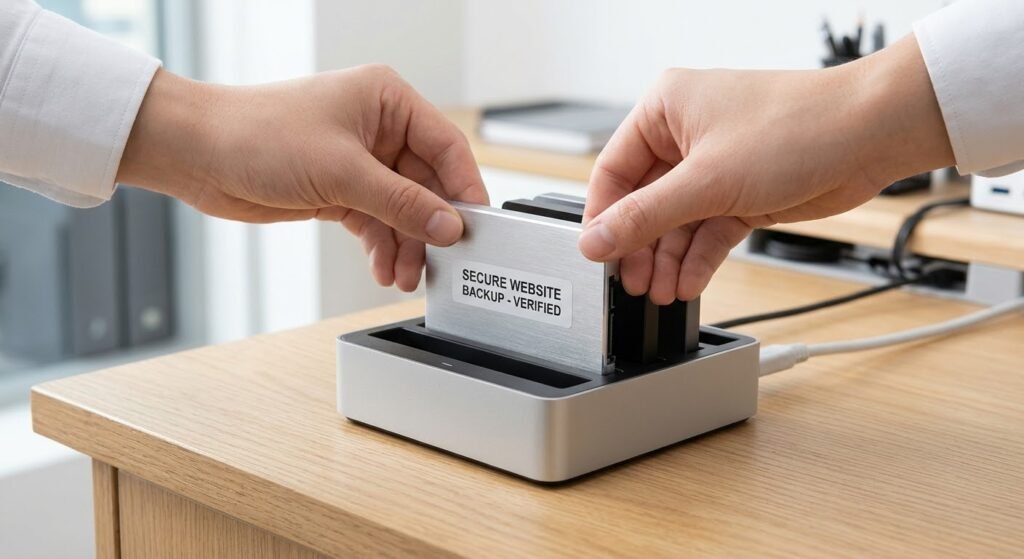
- Maintain reliable backups: Back up website files and databases regularly. Keep copies separate from the live website and test whether they can be restored successfully.
- Monitor for unexpected changes: Review security alerts, administrator accounts and relevant logs. Monitoring is more useful when you know what normal activity looks like for your website.
- Remove unnecessary software: Unused plugins, themes and abandoned installations increase the amount of software you need to maintain. Remove components you no longer need and keep those you retain supported.
- Secure the hosting environment: Website security depends on more than the visible pages. Server configuration, PHP versions, database access and hosting account permissions can all affect the site’s exposure.
These measures reduce risk and can make recovery easier, but they do not replace investigation when there are signs of an actual compromise.
Why Website Owners Must Pay Attention to Server Security
A website can use a secure password and an updated content management system yet remain vulnerable because of a weakness elsewhere in its technology stack. For example, PHP is used by WordPress and many other web applications. A vulnerability in the PHP runtime can affect the underlying server even when the website’s own code is not the source of the problem.
The recent PHP2Shell disclosures illustrate this distinction. The security issues affected PHP itself, so updating WordPress alone was not sufficient to address the vulnerable PHP runtime.
Website owners who use managed hosting should ask their provider to confirm that the server environment is protected against relevant vulnerabilities. Those who manage their own servers need a process for monitoring security advisories, applying patches and verifying that updates have taken effect.
This is particularly important for businesses that depend on their websites for sales, customer enquiries, bookings or access to sensitive information.
Tech Takeaway
The signs of a hacked website are not always dramatic. An unfamiliar administrator account, an unexpected redirect or a sudden change in website behaviour may be the first indication that something is wrong. None of these signs should be treated as automatic proof of a compromise. They should, however, prompt a closer investigation when the changes are unexplained.
The most effective response combines early detection with a structured recovery process. Website owners need to know who maintains their site, how to contact their hosting provider and how backups and security updates are handled.
A website that appears to work normally is not necessarily secure. Regular maintenance and a clear response plan are essential parts of keeping it trustworthy.
Samic Tech Hub